The game is lagging or the FPS is dropping or the screen is crashing during intense fights, if you are facing this severe lagging issue in your device then there are some ways to fix it. Battlegrounds Mobile India is a famous battle royale game and it is common to face errors in its online servers. However, there are some settings that you can apply to make your gaming experience even smoother and lag-free. More than 10000 players have adopted these settings and fixed bgmi lag issues.
- What Causes Lag or FPS Drop in the Game?
- How to Fix BGMI Lag Permanently 2026
- 1. Make some Space
- 2. Disable Automatic Download in the Game
- 3. Change your Graphics Settings
- 4. Disable this Advance Settings
- 5. Enable 4X MSAA
- 6. Routine Repair
- 7. Reinstall the Game (The Golden Weapon)
- What Not to do to Make the Game Run Smoothly?
- FAQs: Most Asked Questions by Players
To fix BGMI lag, we need to optimize everything from graphics settings to device settings. First of all, know what is the real reason for lag issues in the game:
What Causes Lag or FPS Drop in the Game?
FPS stands for frames per second, which refers to what frame rate your device can render every second. Higher FPS means smoother gameplay, such as 30 FPS = Low, 60 FPS = Good, 90 FPS = Very Good and 120 FPS = Excellent.
And “LAG” is a delay between your actions and the game’s response. The game responds slowly due to high ping, overheating of the device and poor internet connection. Apart from this, these are some things which generate lag in the game:
- Having a low-end device that only gives you a frame rate of 30 fps (Low, Medium, High).
- Background apps consume more RAM.
- Poor internet connection = High Ping more than 100ms
- Outdated android or iOS version
- Advance Settings Enable
How to Fix BGMI Lag Permanently 2026
Here’s, how to apply some advance settings that will boost your gaming experience by 99.9%. You have to pay attention to all the points and apply them:
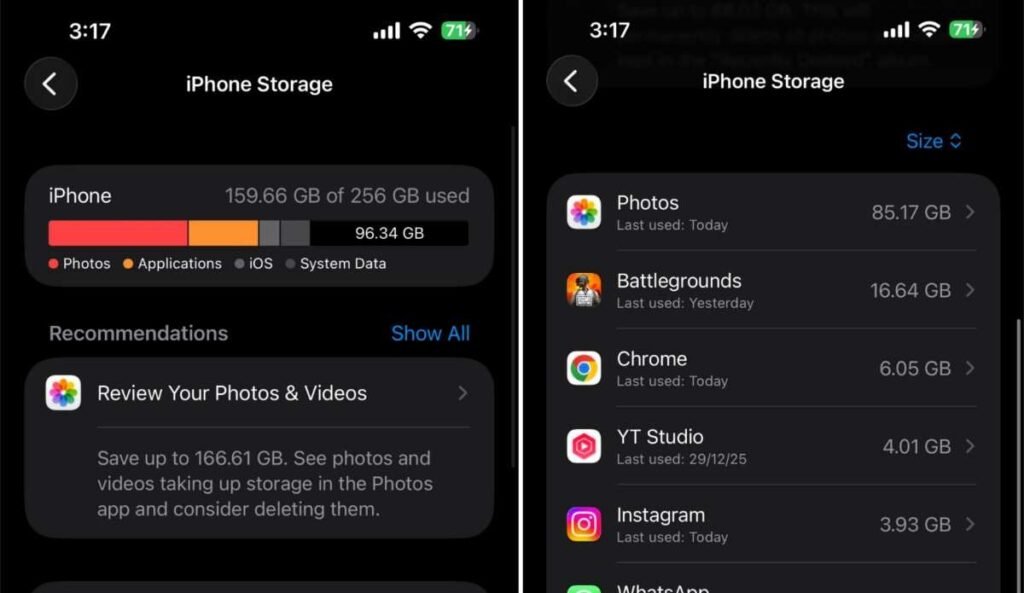
1. Make some Space
Creating storage space by deleting unnecessary items on your phone, you can fix lagging issues by up to 20%. Did you know filling up your phone’s storage turns your device into a tortoise? The effect of which is most visible while playing the game by dropping FPS during the fight.
How to do this? You have to open your gallery and create some space by deleting those old useless screenshots of memes and gameplay videos of yours (if they aren’t important). Along with this, you also have to delete those apps which are of no use to you.
Now open Settings and go to Applications and search BGMI (battlegrounds mobile india) and clear the cache from its storage.
2. Disable Automatic Download in the Game
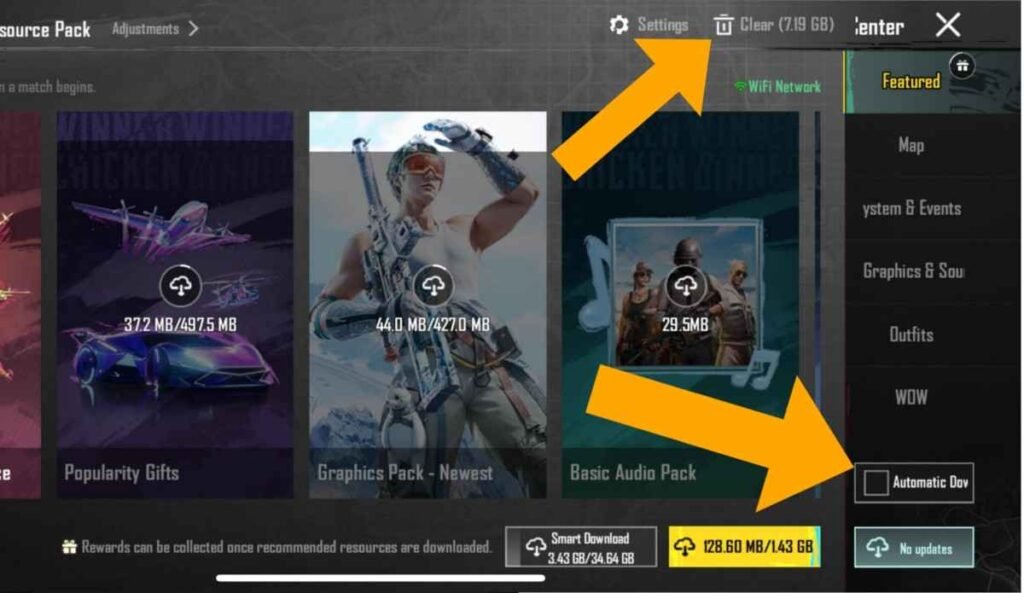
If you have downloaded the entire resources file, its size will be approximately 34.70 – 35 GB. And if your device does not offer higher frame rates then you will start facing lag in the game. If you manage the game files properly then it will solve your problem to a great extent.
You do not need to download full resources to dominate the match. Instead of downloading the full resource package, you only download your skins and the maps you play.
- Tap on the download button in the main screen (lobby) of the game.
- Check the size of the game in your device from the top-right corner (for example, my device has 7.19GB).
- If you have downloaded the entire resource like 25-30 GB, then clear it.
- After clearing, remove the tick by tapping on the box of “Automatic download” from the bottom.
- Now download the maps you play like TDM, Erangle or Livik.
- Open the inventory and download your skins one by one by tapping on them.
3. Change your Graphics Settings
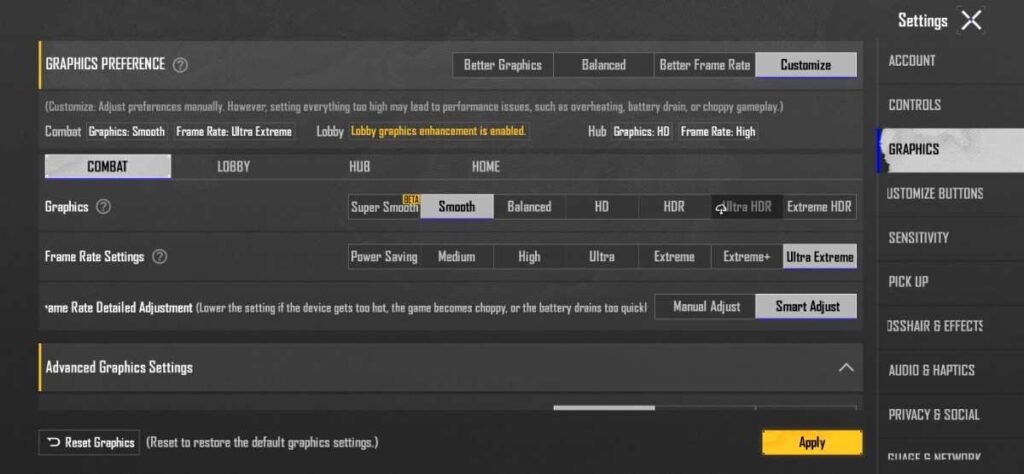
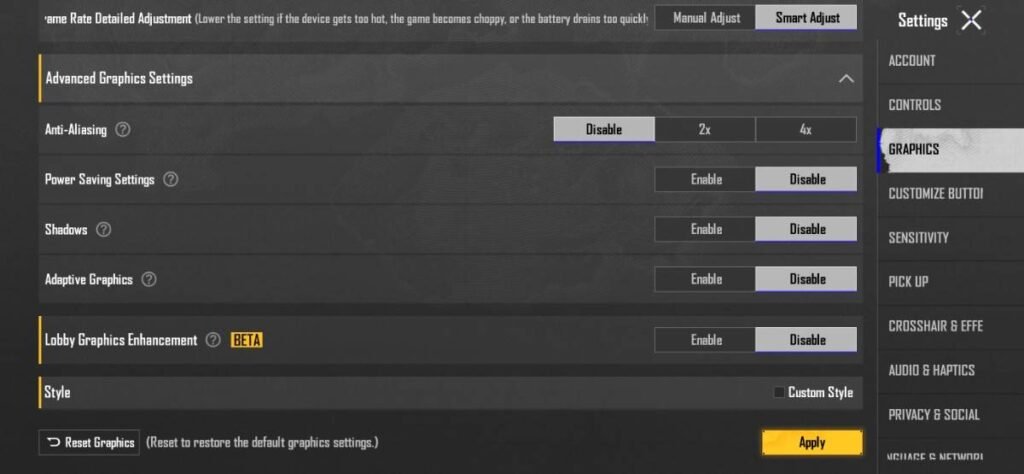
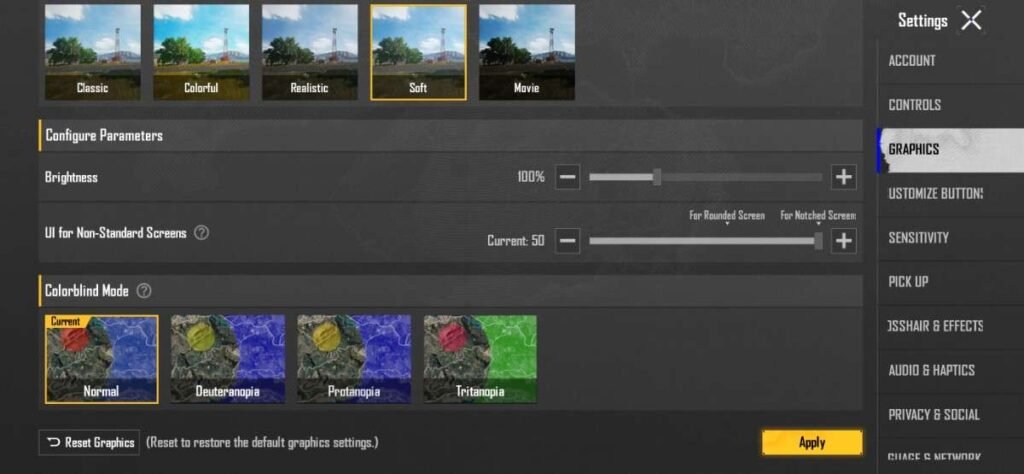
A perfect graphics settings is important to make your gameplay smooth and lag-free. This is one of the best graphics settings ever, since I personally played the game and maintained F/D ration of 10 to 13 in every season by using one of the best bgmi sensitivity. Apply the settings accordingly and play the game:
- Graphics: Smooth
- Frame Rate: Ultra, Extreme or Higher Available like Extreme+ or Ultra Extreme (If your device supports it).
- Anti-aliasing: Disable
- Power Saving: Disable
- Shadows: Disable
- Auto-Adjusting Graphics: Disable
- Style: Soft or Colorful (I have applied Soft.)
- Brightness: 100 or Below 100
4. Disable this Advance Settings
Enabling extra settings in the game adds even more load to your gameplay. For a better and smooth gaming experience you have to adjust the advance settings. So you need to know which setting should be disabled and which one should not.
Open Settings and go to the bottom of Advance Controls and disable these:
- Highlight Moments: Disable
- Loss Replay: Disable
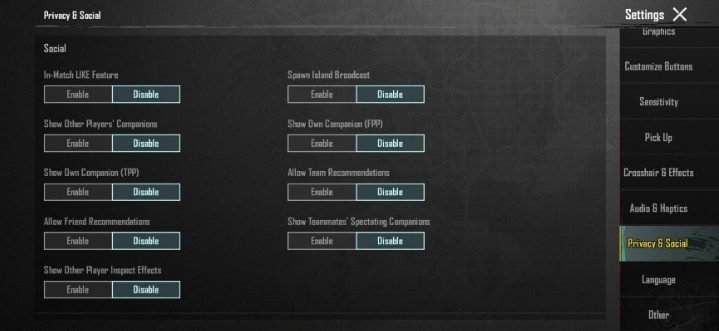
Now go to “Privacy & Social” option in Settings and disable these:
- You have to disable all the options of “Social”, like I have done in the screenshot below.
5. Enable 4X MSAA
Enabling 4X MSAA increases fluency in BGMI which is also an anti-lag feature. Enabling this improves the overall performance of your device whether you want to play games or run editing apps.
Here’s how to enable it. Go to the device’s settings and go to About phone, or continuously tap on the build number there 10-15 times. This will unlock developer option in your phone. Now find the developer option in settings and enable the option of 4X MSAA by scrolling to the bottom.
6. Routine Repair
Whenever we face any error or glitches in the game, we use “routine repair” to solve it. Developers have given this option to players to fix unwanted bugs in the game by clearing the game data. Also this feature is the solution to your lag issues, if you have applied all the settings above and still not getting smooth gameplay then it is time to do routine repair.
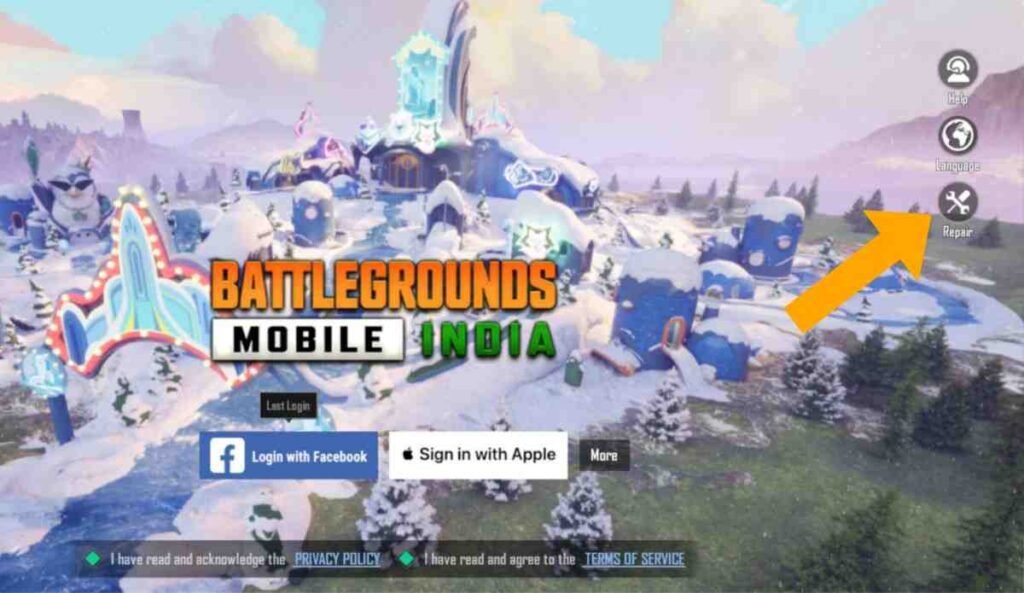
- Log out of your account and come to the login screen.
- And select Repair from the options on the right.
- Now tick “Routine Repair” and press OK.
- After the repair process is over, the game will restart and login your ID and check whether the game is running better than before or not.
7. Reinstall the Game (The Golden Weapon)
If all else fails then reinstalling the game may solve all the problems with bgmi lag. But before this, copy your controls and take a screenshot of the sensitivity and also link the account to Twitter, Google Play.
Now delete the game and restart your phone. Download the game first from play store or app store. A fresh installation clears the corrupted files and data of your game and makes the game run smoother than before.
Whenever a new update of the game comes, delete the game and download it again, this will prevent the frame rate from dropping during fights in your match.
This will fix your problem if you are facing lag or FPS drop issues in BGMI 4.4 update.
What Not to do to Make the Game Run Smoothly?
- Don’t use high Graphics: Do not keep the graphics settings too high like cinematic, this setting is the most demanding due to which there is more load on the servers and the game lags.
- Poor Internet Connection: Due to a poor internet connection the game lags, stutters and freezes. You need a wifi connection of up to 200mbps and if you are on a 50-100mbps plan then you should sit closer to the router.
- Avoid Playing While Charging: Playing games while charging your phone slows down your CPU and GPU, which causes your device to overheat while playing BGMI.
- Use Game Boosters: A game booster boosts your device to improve the performance of the game, you can also install it and get relief from lagging issues.
- Avoid Playing on Low Battery: If your phone is low on charge, charge it fully and then play the game. This is also an important point by which you will notice improvement in your game.
FAQs: Most Asked Questions by Players
BGMI LAG is the delay between your actions and the game’s response, which happens when your device gets too hot, the internet connection is slow, or the phone’s storage gets full.
No, no app can completely fix your bgmi lag issues. However, you can reduce the lag by downloading some game booster apps from play store.
With new updates, some new bugs and glitches are also found which you can fix with routine repair. However, its solution is given by the developers themselves with updates of 4-5 MB in next 1-2 days.